

The Russian App Store does not show Apple’s full catalog. Some apps are removed from the regional storefront because of regulations, licensing, or developer policy. Search returns nothing even though the same app is available in other countries. This applies to all Apple devices on the same Apple ID: iPhone, Mac (macOS), and Apple TV.
A clear example for VPN users is Happ: a subscription-based client that used to be installable from the Russian catalog is no longer available in the App Store for the Russia region — on phone, Mac, or set-top box. Updates stop, and you cannot reinstall after replacing a device. The fix is to change your Apple ID region to a country where Happ is still listed, download the app on the device you need, and switch back if you want.
Important: region is tied to your Apple ID, not a single device. Change the country on iPhone and the same App Store catalog appears on Mac and Apple TV signed into that account.
Below is a practical walkthrough: what to prepare, where to tap on iPhone, macOS, and Apple TV, and what limits to expect.
Why change App Store region
The App Store is tied to your Apple ID country or region, not your system language or physical location. Region affects:
- which apps appear in search and on developer pages — on iPhone, Mac, and Apple TV;
- whether updates are offered for installed apps;
- prices, subscriptions, and payment methods;
- some media catalogs (Apple Music, TV+, Books).
If an app vanished from the Russian storefront, switching to another country (US, Kazakhstan, Turkey, UAE, etc.) opens the global listing on all your Apple devices. For Happ, after changing region you can install:
- on iPhone — the global build from the US App Store, setup in the iOS guide;
- on Mac — from the US App Store or via the macOS guide (direct DMG install is also available);
- on Apple TV — the TV build from the US App Store, setup in the Apple TV guide.
Changing region does not bypass website blocks and does not replace a VPN — it only solves downloading and updating apps from another storefront.
What to prepare before switching region
Apple does not always allow an instant switch. Check:
| Requirement | Why |
|---|---|
| Zero Apple ID balance | You cannot change region with funds on the account |
| No active subscriptions on this Apple ID | App Store, Apple Music, iCloud+, Apple Arcade, etc. — cancel or wait until the period ends |
| No pending refunds or orders | Open disputes block the change |
| Leave Family Sharing (if you are not the organizer) | Members cannot change country on their own |
| Payment method for the new region or None | For free apps some countries allow None; paid apps need a card or gift card for that store |
Tip: if you only need Happ and other free clients, many regions offer None when installing a free app. If None is unavailable, use an App Store gift card for the chosen country (even a small balance works) or another valid method.
Save a list of active subscriptions and make sure iPhone and Mac backups are current — region change rarely touches app data, but canceled subscriptions must be set up again.
How to change region on iPhone: step by step
Screenshots below are from iPhone, but the logic is the same across Apple’s ecosystem: you change the Apple ID country, not settings on one device only.
Method 1: through Settings (recommended)
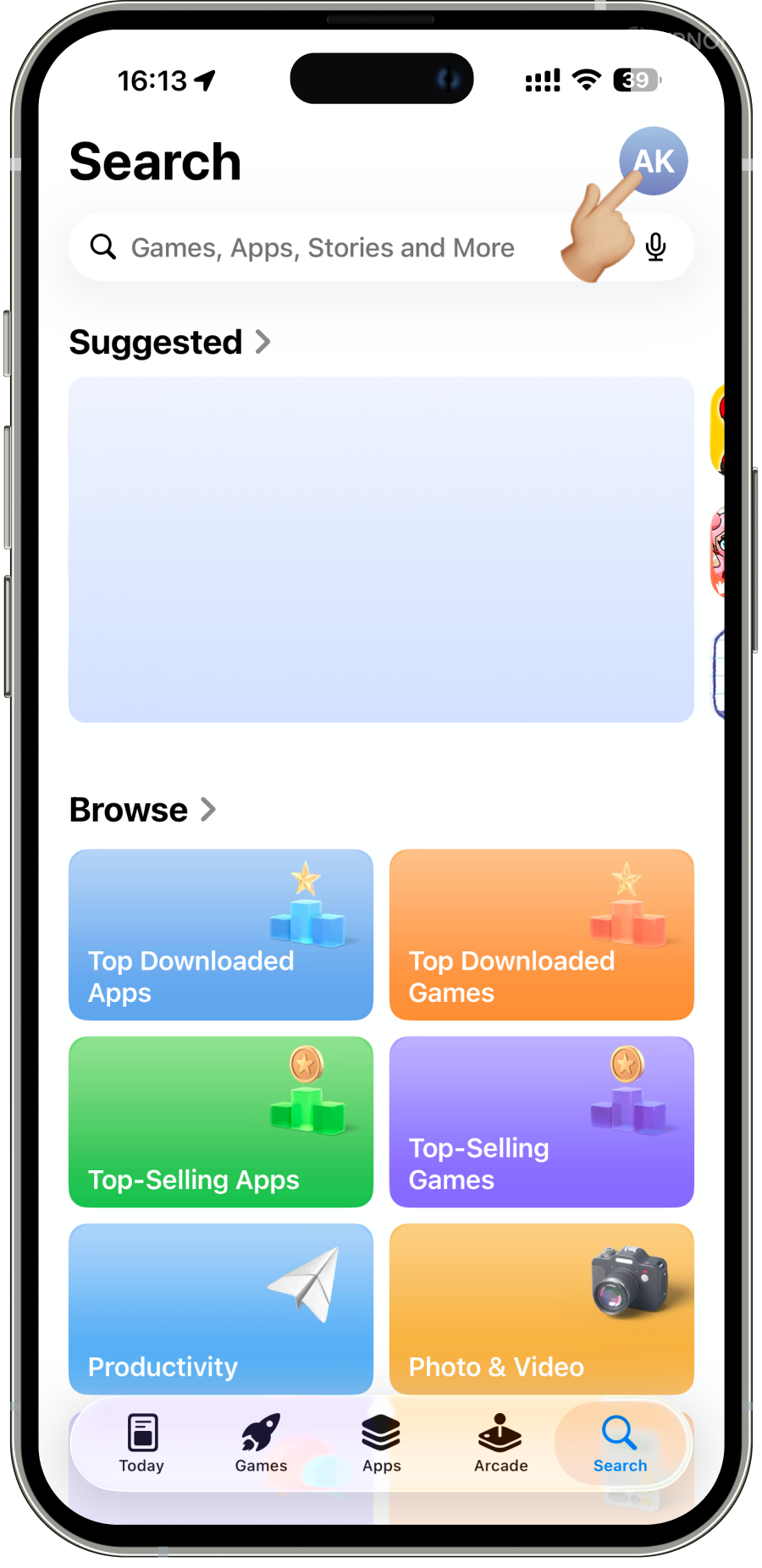
- Open Settings → tap your Apple ID name at the top (your profile).
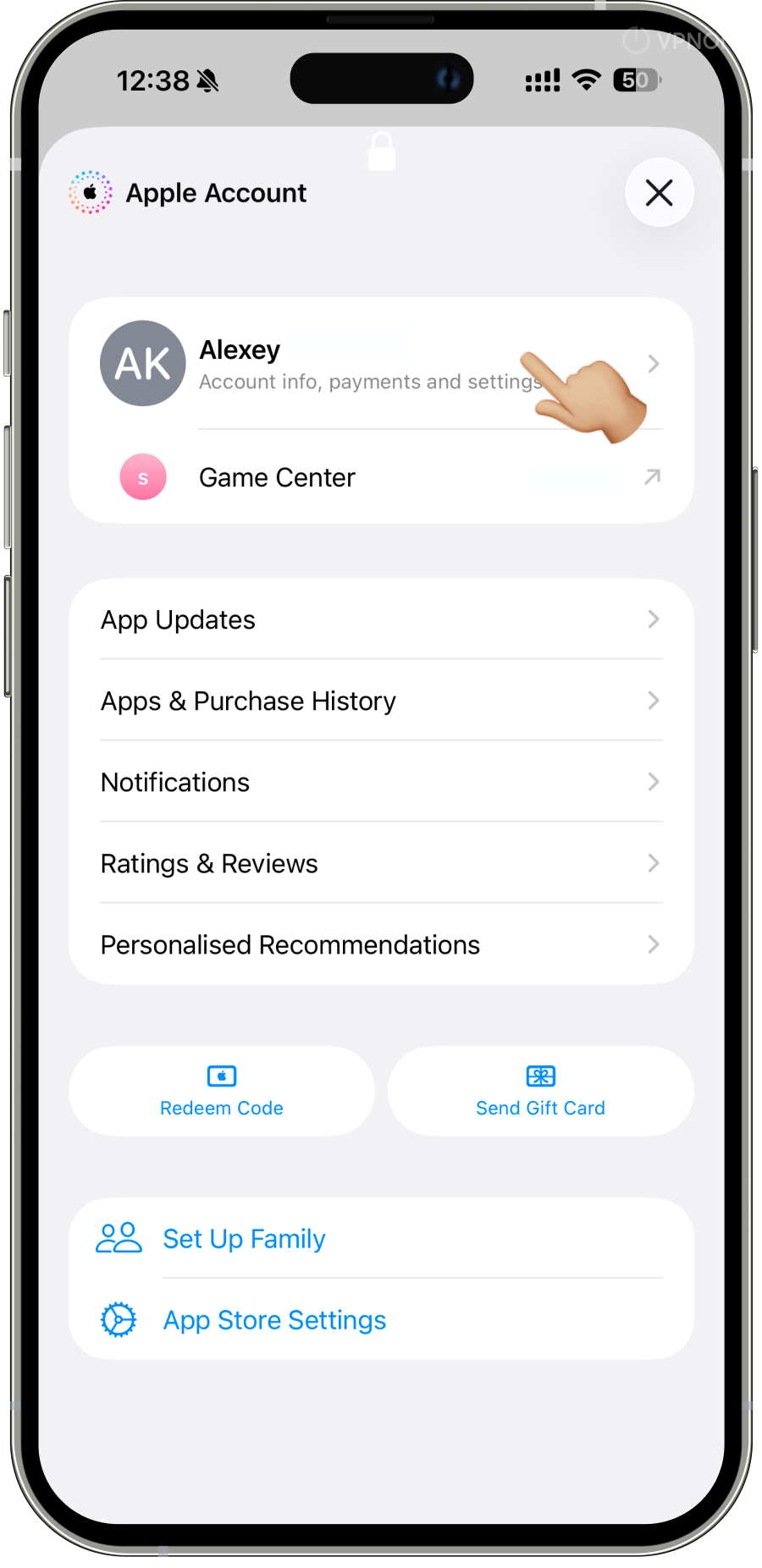
- Choose Media & Purchases → View Account (Face ID or password may be required).
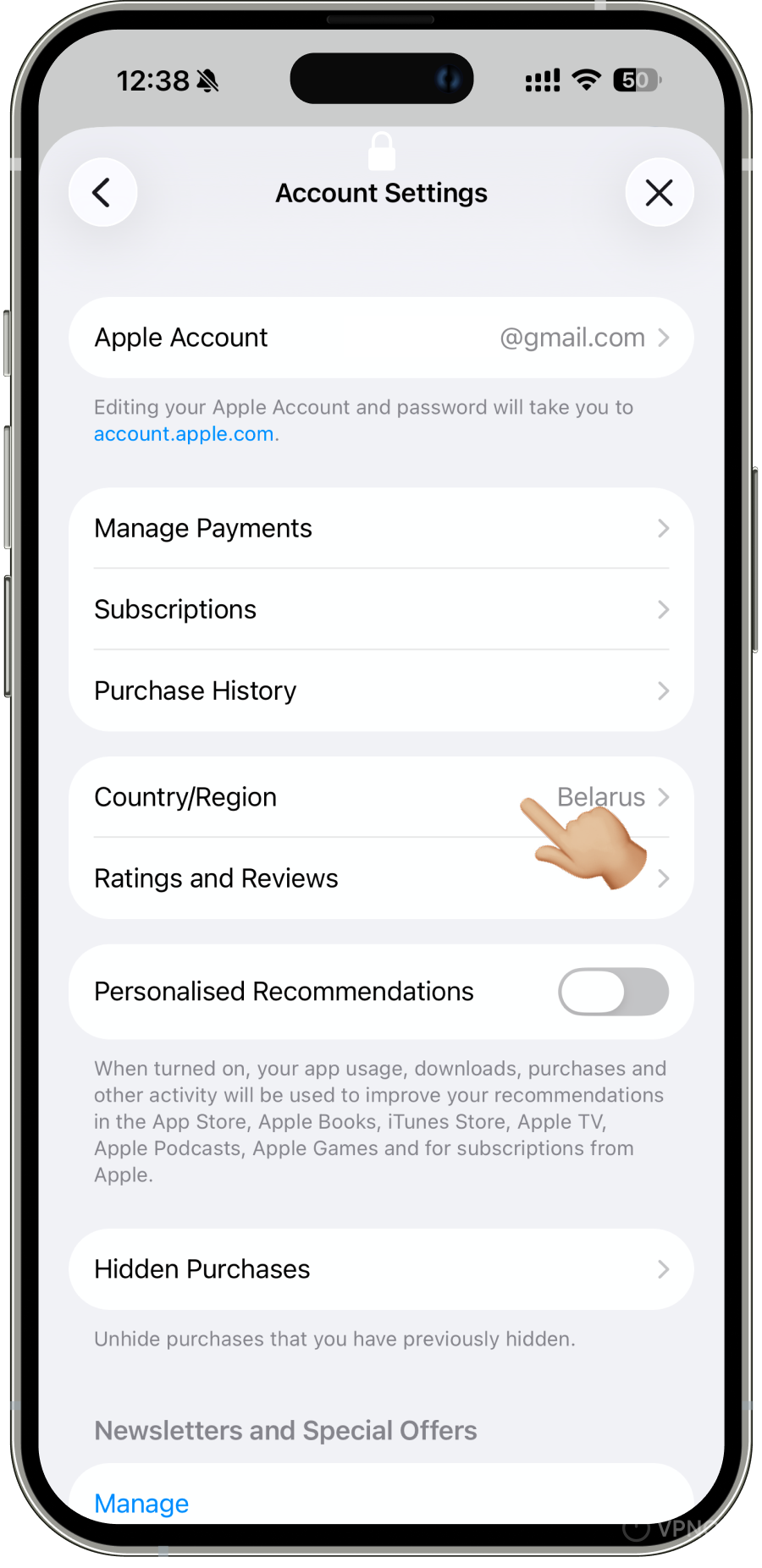
- Tap Country/Region → Change Country or Region.
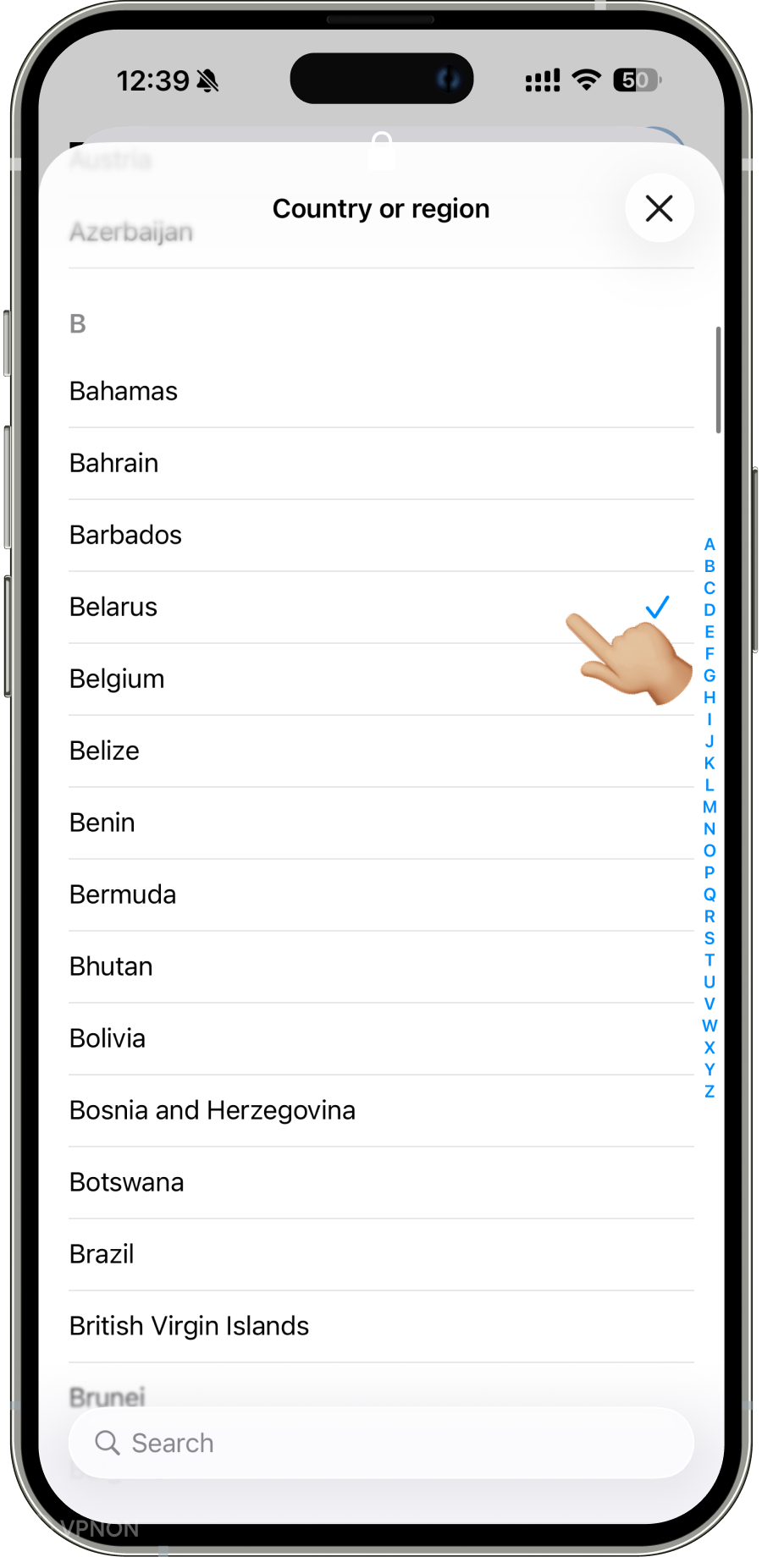
- Pick a new country from the list (for Happ, United States, Kazakhstan, or Turkey often work — the app must exist in that catalog).
- Accept the Terms and Conditions.
- Set a payment method or None if offered for free downloads.
- Fill in the billing address for the selected country. You can get sample details in our Telegram channel, or use any address generator.
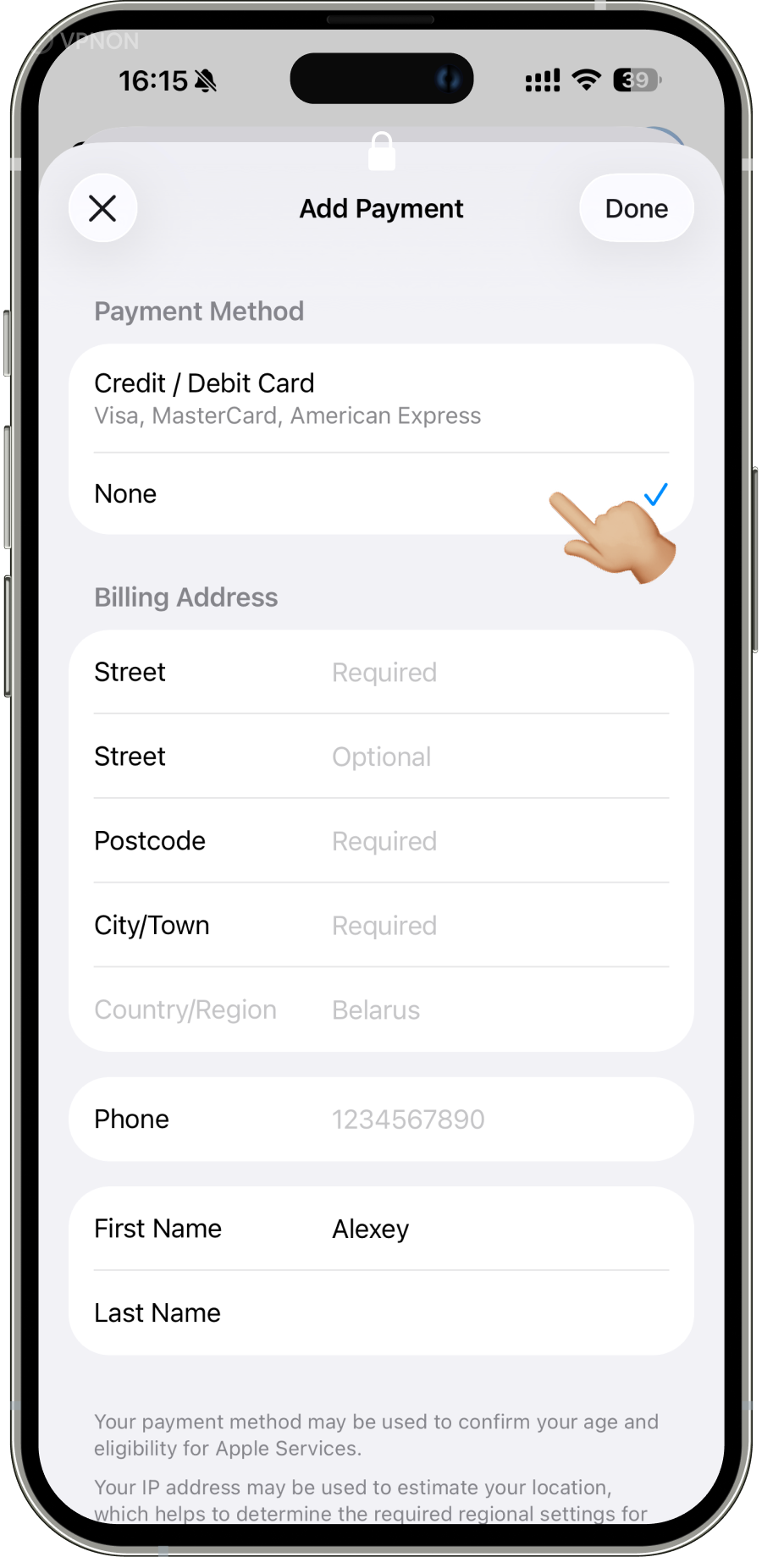
- Save and wait for the change to apply — usually 1–2 minutes. The new region syncs to all devices on this Apple ID.
Method 2: through the App Store on iPhone
- Open the App Store.
- Tap your profile icon (avatar) in the top right corner.
- Account → Country/Region → Change Country or Region.
- Follow the same steps for country, payment, and address.
How to change region on macOS
On Mac, the Apple ID region is the same account — after changing on iPhone, your Mac picks up the new catalog automatically. To do it from the computer:
Through System Settings
- Open System Settings → Apple ID (your name at the top).
- Go to Media & Purchases → Manage.
- Tap Country/Region → Change Country or Region.
- Pick a country, accept the terms, set payment and address — same as on iPhone.
Through the Mac App Store
- Open the App Store.
- From the menu choose Store → Account (or click your account name at the bottom of the sidebar).
- Click Country/Region → Change Country or Region.
- Complete the region change with the same details.
After that, the Mac App Store shows apps from the selected country, including Happ if it is missing from the Russian catalog.
How to change region on Apple TV
Apple TV does not have a full App Store region form on its own — region is tied to your Apple ID, same as on iPhone or Mac. Easiest approach: change region on iPhone or Mac (guides above); the set-top box picks up the new catalog after restarting the App Store or rebooting.
To check or change region directly on TV:
- Open Settings → Users and Accounts → select your Apple ID.
- Go to Store and Purchases.
- If Country/Region is available — change it; if not — use iPhone or Mac.
After switching region, open the App Store on Apple TV and install Happ for TV — the global listing, not the Russia listing.
Installing Happ after the region change
- Install Happ from the new regional App Store on the device you need.
- Copy your subscription in the personal account and add it in the app:
- iPhone — iOS guide;
- Mac — macOS guide;
- Apple TV — Apple TV guide (configured via QR code from your phone, where Happ must already be set up).
- Test server connection and app updates on each device.
Can you switch region back
Yes. After installing Happ (and any other apps you need), you can set the country back to Russia the same way — on iPhone, Mac, or via appleid.apple.com: Apple ID → Media & Purchases → Country/Region.
Keep in mind:
- Installed apps on iPhone, Mac, and Apple TV usually stay on the devices and keep working.
- Updates may not appear until your region again matches a storefront where the app is listed — occasionally switch back to a foreign region or update via Finder on Mac / App Store on any device with a matching region.
- After returning, prices and subscriptions follow the Russian store again — useful if you rely on local services.
Some users keep a separate Apple ID for a foreign App Store only — a legitimate workaround, but purchases and subscriptions are split across two accounts, and you switch between them manually on iPhone, Mac, and Apple TV.
Common issues and fixes
“Unable to change region”
- Check balance, subscriptions, Family Sharing, and pending orders.
- End Apple Music / iCloud+ trials tied to the current country.
- Wait 24–48 hours after a recent purchase — Apple sometimes blocks changes temporarily.
No “None” payment option
- Try another country where None appears more often for free apps.
- Buy a small App Store gift card for that region and attach it as payment.
App still not found after the switch
- Force-quit the App Store on iPhone, Mac, or Apple TV and reopen it.
- Confirm you are signed into the same Apple ID you updated.
- Open the app page via a direct link:
- iPhone / Mac — global Happ listing, not the Russia listing;
- Apple TV — global Happ for TV listing, not the Russia listing.
Worried about losing subscriptions and data
- Region change does not delete photos, contacts, or installed apps on iPhone, Mac, or Apple TV.
- Not all Apple media subscriptions transfer automatically — review them manually.
- Third-party app data (messengers, banks) does not depend on Store region.
Alternatives to changing region
| Option | Pros | Cons |
|---|---|---|
| Change main Apple ID region | Single account on iPhone, Mac, and Apple TV; simpler updates | Must meet Apple rules; subscription pricing may shift |
| Second “Store-only” Apple ID | Primary account stays Russian | Two accounts; manual switching on each device |
| Happ on other platforms | No Apple region change | Android — Google Play or APK; Windows — direct install; Mac — DMG without App Store |
On iPhone and Apple TV, without changing region or using a second Apple ID, you cannot officially install an app removed from the Russian App Store — sideloading via third-party stores without jailbreak is not available. On Mac, you can install Happ directly via DMG, bypassing the App Store — see the macOS guide.
Security and common sense
- Change region only in official settings on iPhone, macOS, Apple TV, or at appleid.apple.com — never share your Apple ID password with “helpers” or buy pre-made accounts from strangers.
- Download Happ only from the App Store (or the official DMG on Mac), not from Telegram channels or configuration profiles from unknown sites.
- A VPN client is sensitive — it sees your traffic. Use a trusted subscription and avoid suspicious configs; see app store risks and using VPN in Russia.
Summary
Happ was removed from the Russian App Store — this affects iPhone, Mac, and Apple TV. To install or reinstall the client, change your Apple ID region to a country where the app is still available, download it on the device you need, and set up your subscription. The process takes 5–15 minutes if you have no blocking balance or subscriptions. You can switch back afterward, but watch Happ updates — they sometimes require the foreign storefront again.