
How to Connect a VPN on Linux
6 min readUpdated
To connect through Happ on Linux, install a package for your distribution and architecture, import a valid subscription and select a server. The setup below uses a subscription to VPNON, our service. Happ itself does not provide servers.
Sources were read on 25 October 2026. The build number in the retained illustrations has not been established. The images do not confirm button locations in the current release. Package installation and a Linux connection were not tested as part of this review.
Connecting on Linux
In Happ’s official list, Linux packages are available as DEB, RPM and pkg.tar.zst, with x64 and arm64 variants. Choose the format for your distribution and system architecture. The installation procedure below covers DEB packages on Debian/Ubuntu with APT. For other formats, use your distribution’s documentation.
The illustrated setup requires a graphical desktop and a valid subscription or configuration from a provider. Installing the app alone does not add servers. Check compatibility between the selected Happ release and your system separately.
For Debian/Ubuntu with APT:
- Open a terminal and check the system’s package architecture:
dpkg --print-architecture
- Download the DEB from Happ’s official list according to the result: the x64 file for amd64, or the arm64 file for arm64. For another architecture, first check whether a suitable build is available.
- Open a terminal in the folder containing the downloaded file.
- Run only one command, matching your file.
For Happ.linux.x64.deb:
sudo apt install ./Happ.linux.x64.deb
For Happ.linux.arm64.deb:
sudo apt install ./Happ.linux.arm64.deb
- Read APT’s proposed list of changes. Confirm only the expected installation. If it proposes unexpected removals or reports an error, stop and save the message.
- Wait for installation to finish successfully. Then continue to app setup.
If the downloaded file has a different name, use its actual name. The ./ prefix refers to a file in the current folder. If sudo asks for a password, enter it only at the standard terminal prompt and do not send it to anyone.
The general syntax for installing a local DEB is described in Ubuntu’s guide. The architecture check is documented in the dpkg manual, and the amd64/x64 and arm64 names in Ubuntu’s documentation.
App Setup
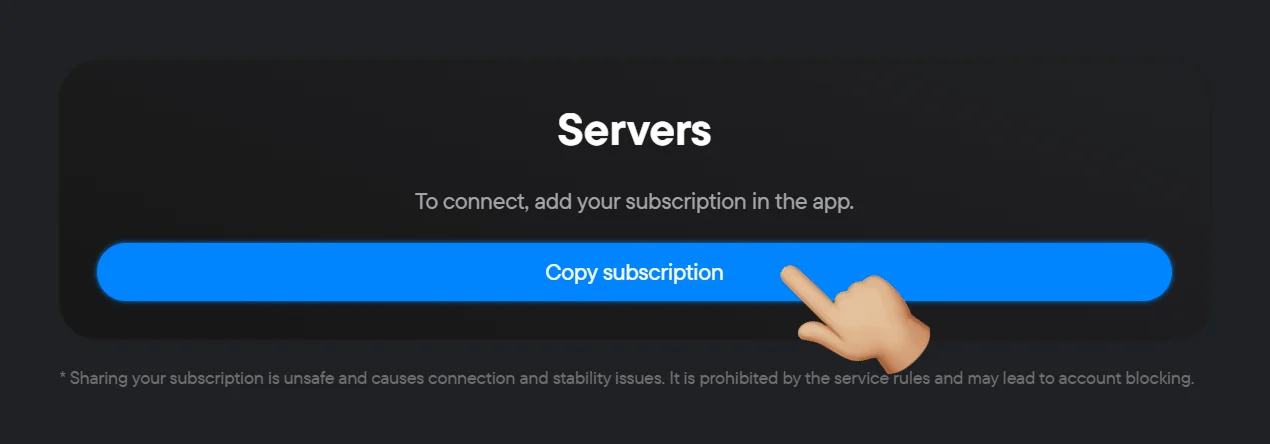
- On the same computer, click Copy subscription in your account. Copy the access data, not the account page’s address. Do not publish your subscription link.
- Open the installed Happ app.
- In the illustrated Insert window, place the cursor in the field and paste the copied subscription using Ctrl + V. If your screen differs, find clipboard import in the documentation for your version.
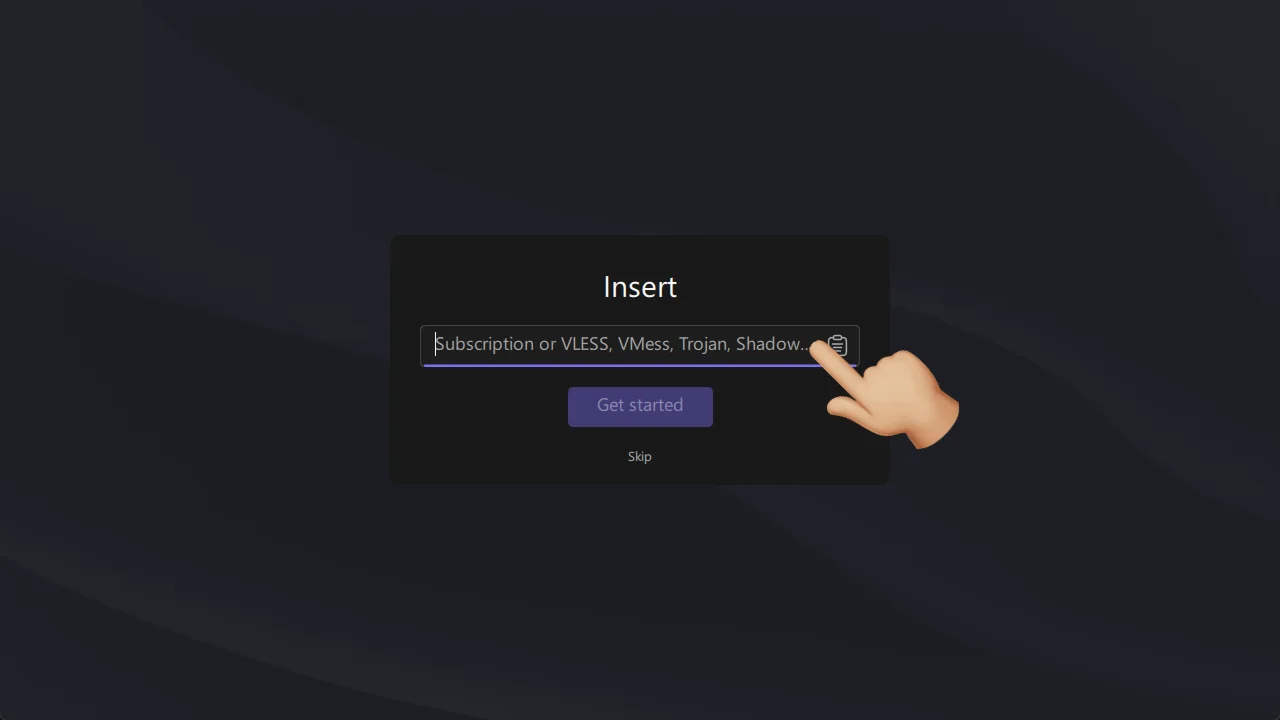
Interface illustration; the build number has not been established.
- In the interface shown, click Get started to add the subscription. If the button is missing or import fails, consult the documentation for your version and check the copied data.
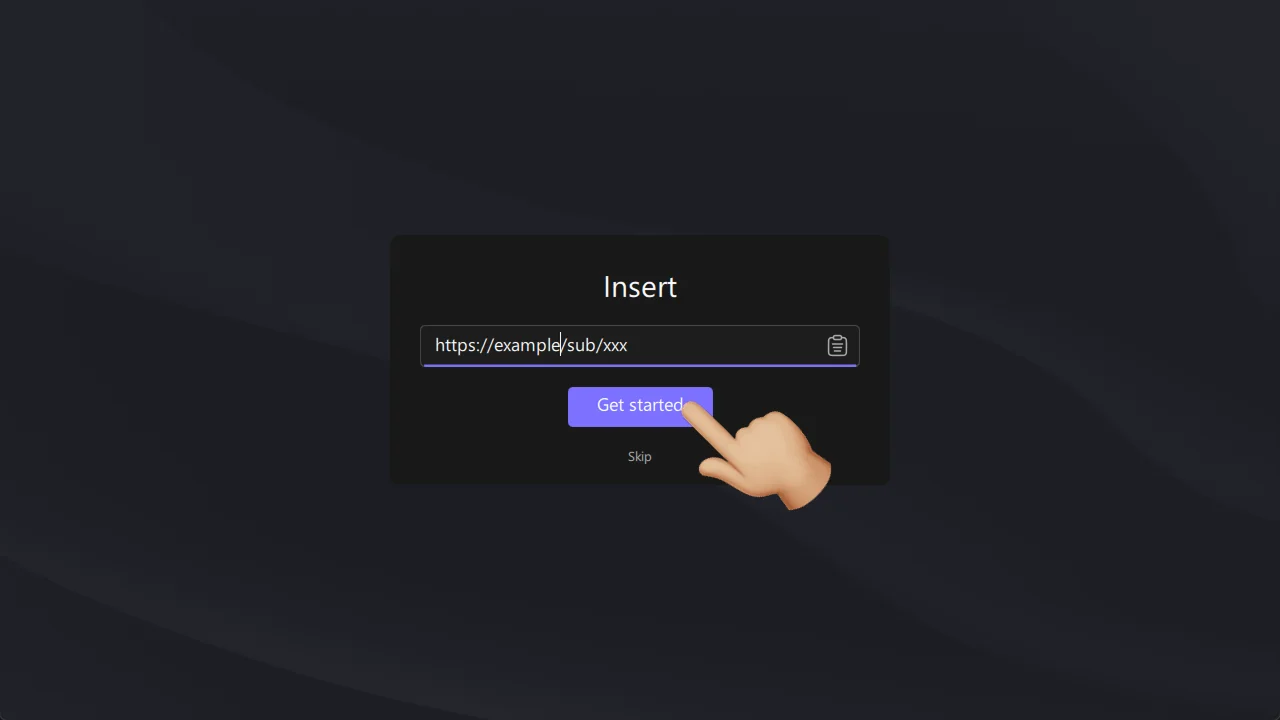
A demonstration address is shown, not a working subscription.
- Wait for the added subscription’s servers to appear and select a server provided to you. In the retained illustration, the list is on the left. If the list is empty or there is a download error, first check the import and the validity of your access with the provider.
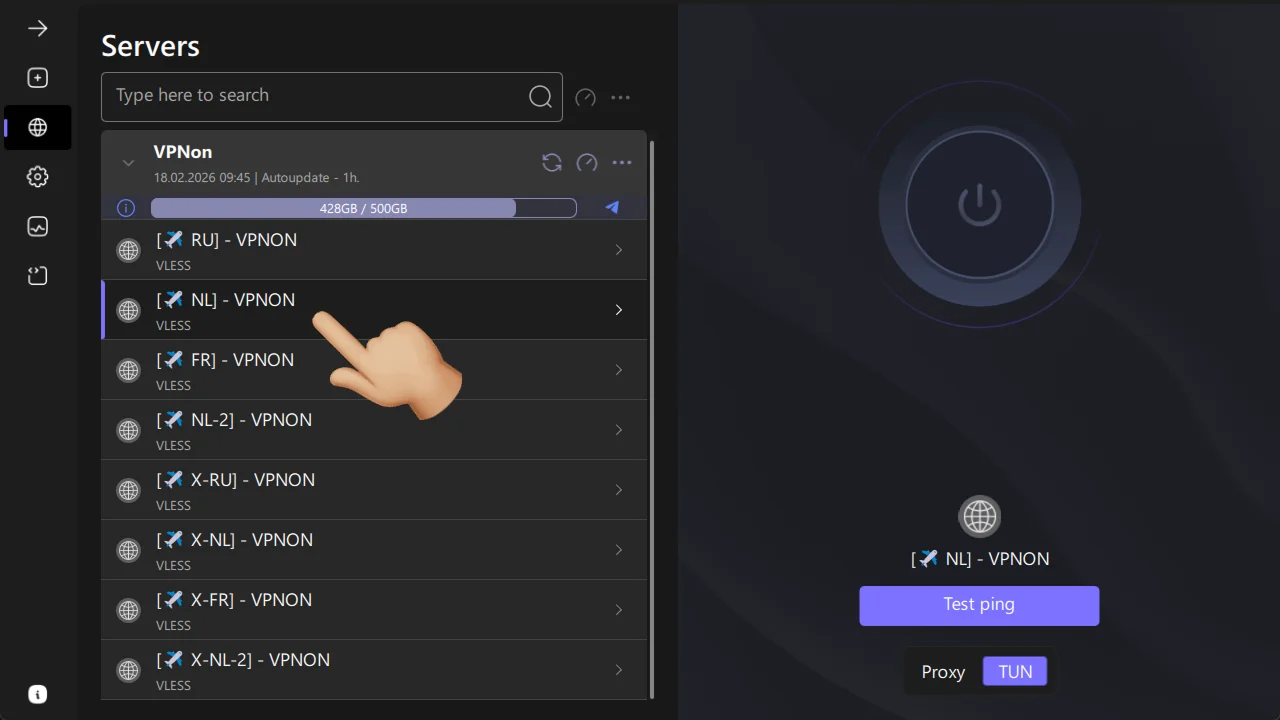
Example server list; the location and traffic counter do not define the current plan’s terms.
- The illustrations show TUN selected. Before connecting, check the Proxy/TUN mode and routing profile against the documentation for your version and your subscription’s terms. Do not automatically copy the mode selected in the image.
- Click the large button with the power symbol.
- If the system requests privileges for a network component, read the request and confirm only the expected action of the installed app. On a work or school computer, agree on the change with the administrator.
- Wait for Happ to show a connected state and perform one required action on a site or in an app you are allowed to access. A “connected” status alone does not guarantee access to every resource or handling of every program’s traffic. If the action fails, continue with the troubleshooting below.
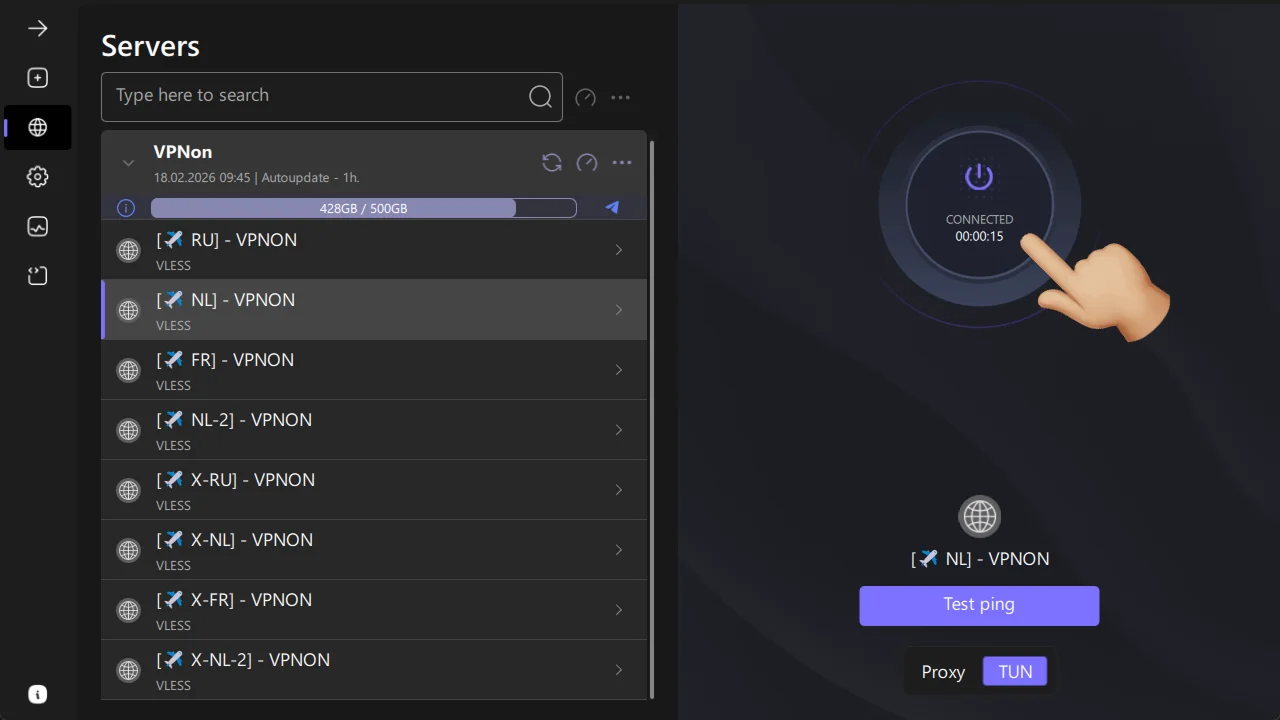
A connected status is shown; this does not test every resource or program.
The effect of the routing profile is described in the Happ Desktop 4.5.4 release notes.
| Metric | Result | max | avg | min |
|---|---|---|---|---|
| Ping | —ms | — | — | — |
| Download | —Mbps | — | — | — |
| Upload | —Mbps | — | — | — |
If Happ Will Not Install or Connect
- If installation fails, check the package format, architecture and exact package manager message. Do not suppress the error with a forced installation or remove system packages to continue.
- If the app will not launch, record your distribution, its version and the Happ version. Check compatibility with the developer. Do not disable system protection based on an arbitrary guide.
- If the subscription will not load or there is no connection, check regular internet access without VPN, the validity of your access and the selected profile. If possible, repeat the check on another network. Save the exact error and contact your access provider or the client developer.
Do not publish subscription links, keys, passwords or a full log containing secrets. Agree on changes to a managed device with its administrator.
Check installation against Ubuntu’s documentation and import against Happ’s guidance.
Author: VPNON Editorial Team