
How to Connect a VPN on Android
3 min readUpdated
Connecting on Android
To connect to VPNON on Android, install Happ, add the subscription link from your account, select a server and start the connection. Happ is a client; installing the app does not itself provide access to servers.
Before installing, check the requirements of the Happ release you chose and the file source. If Google Play is unavailable for your account or device, check the APK against the project’s release channel; a similar filename does not establish its origin. If a security warning appears, find out why before proceeding; do not disable protection blindly. On a work device, follow your administrator’s rules.
Download and install the Happ app:
App Setup
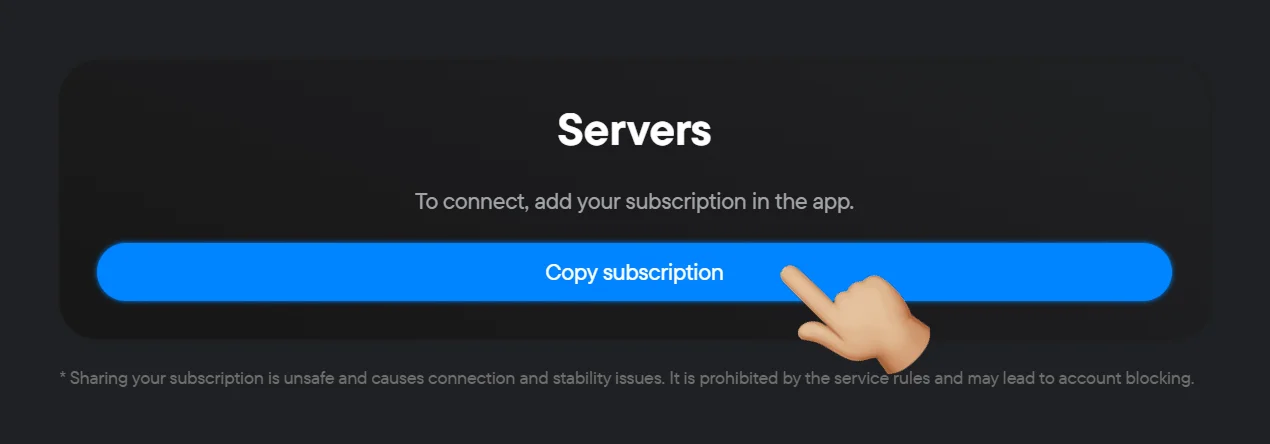
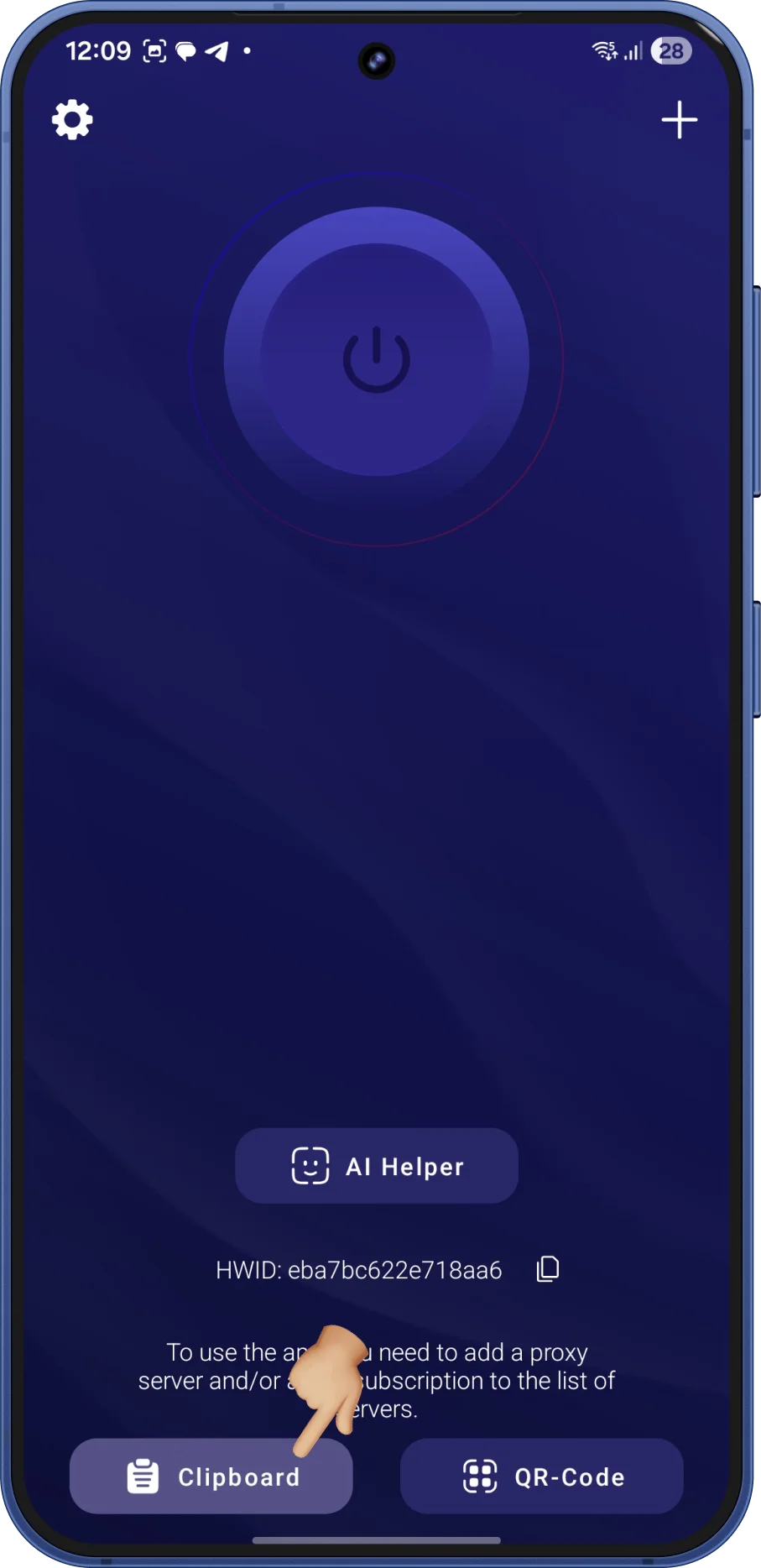
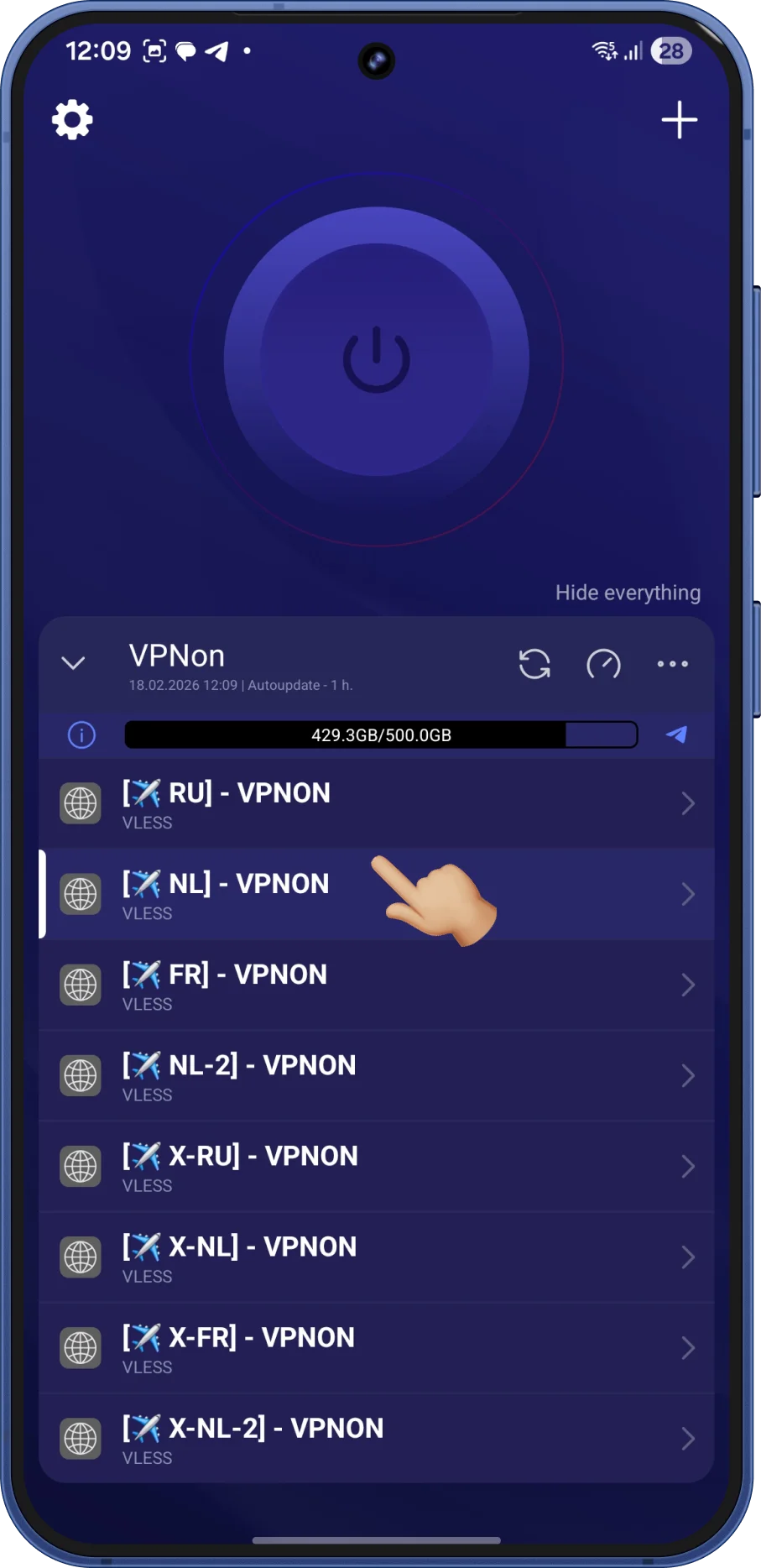
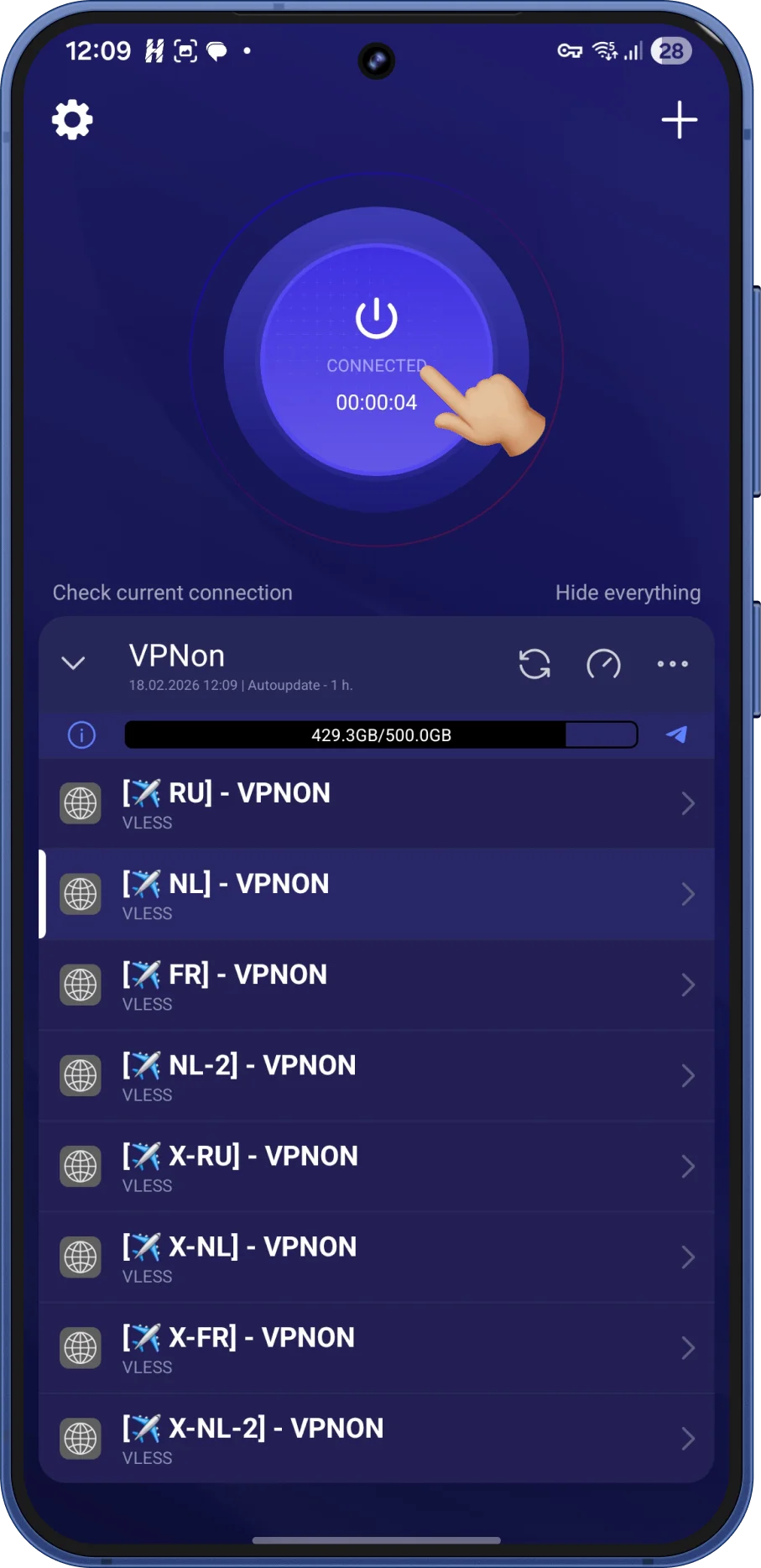
The saved screenshots below show the import process. The layout may differ in your version.
- Click the Copy subscription button in your account.
- Launch the Happ app.
- On the add-subscription screen, tap Clipboard to import the copied link. Do not publish your subscription link: it may contain access credentials.
- After importing, select the server you need from the server list.
- Tap the connect button. If Android displays a VPN connection request, read it and approve it only if you intend to use the selected app. Wait for the connection status and check the website or app you need.
If the link cannot be added, check that it was copied in full and is compatible with the client version you chose. An empty server list alone does not prove that your subscription has expired.
Android allows one active VPN service per user or profile; starting another stops the existing service. On a work device, do not change managed settings without your administrator.
If the client shows a connection but the website you need does not open, check website availability and the route used by the app separately. Detailed steps are in the VPN checking guide. When contacting support, note the exact error, Happ version, Android version and network type. Do not send your password, subscription link, QR codes or full profile.
Useful links:
| Metric | Result | max | avg | min |
|---|---|---|---|---|
| Ping | —ms | — | — | — |
| Download | —Mbps | — | — | — |
| Upload | —Mbps | — | — | — |
Author: VPNON Editorial Team