
Happ: server list and routing issues
3 min readUpdated
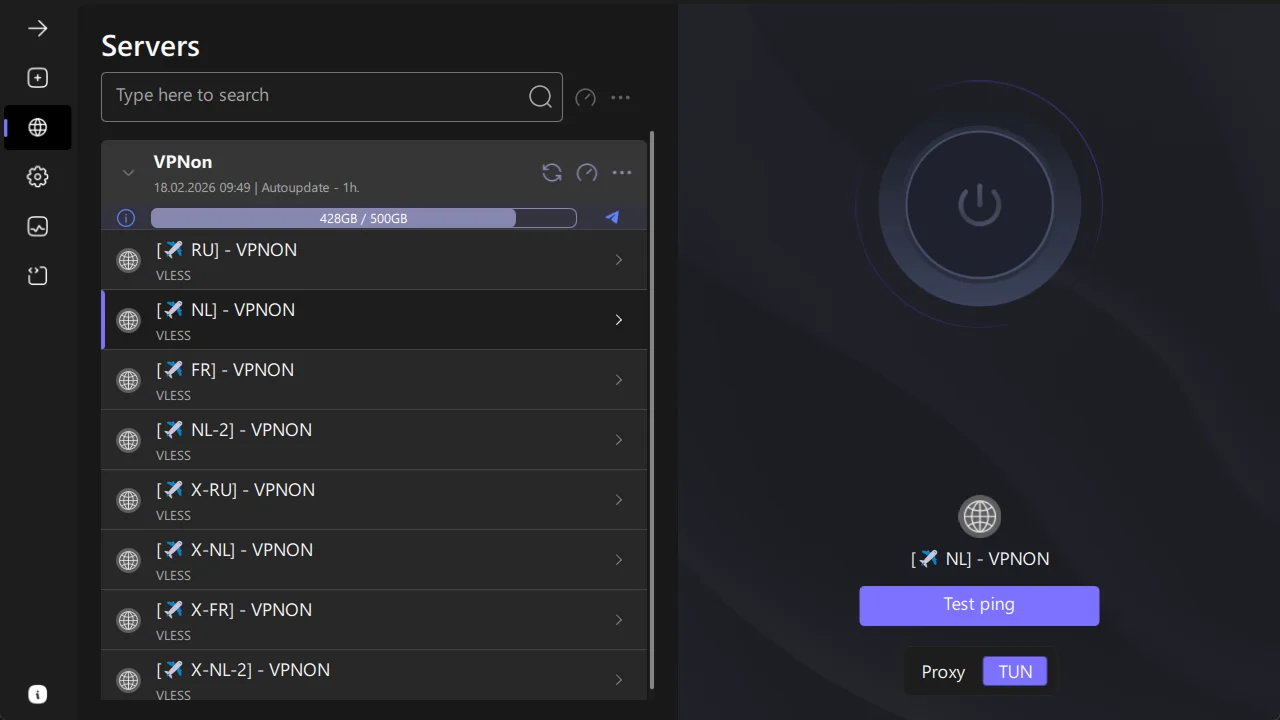
If Happ does not show servers, first check whether subscription data is being received. If routing does not behave as expected, check the selected profile and expected traffic path. Updating the server list and checking routing are different actions; a successful update alone does not establish that the connection works.
The examples below show a saved Happ desktop interface. The app version in the images has not been established; element placement and available settings may differ in your build. Use the actions appropriate to your platform and version.
Server List Is Missing
- Find the relevant subscription in the server list and press the update icon next to it, shown in the screenshot. Wait for the update result.
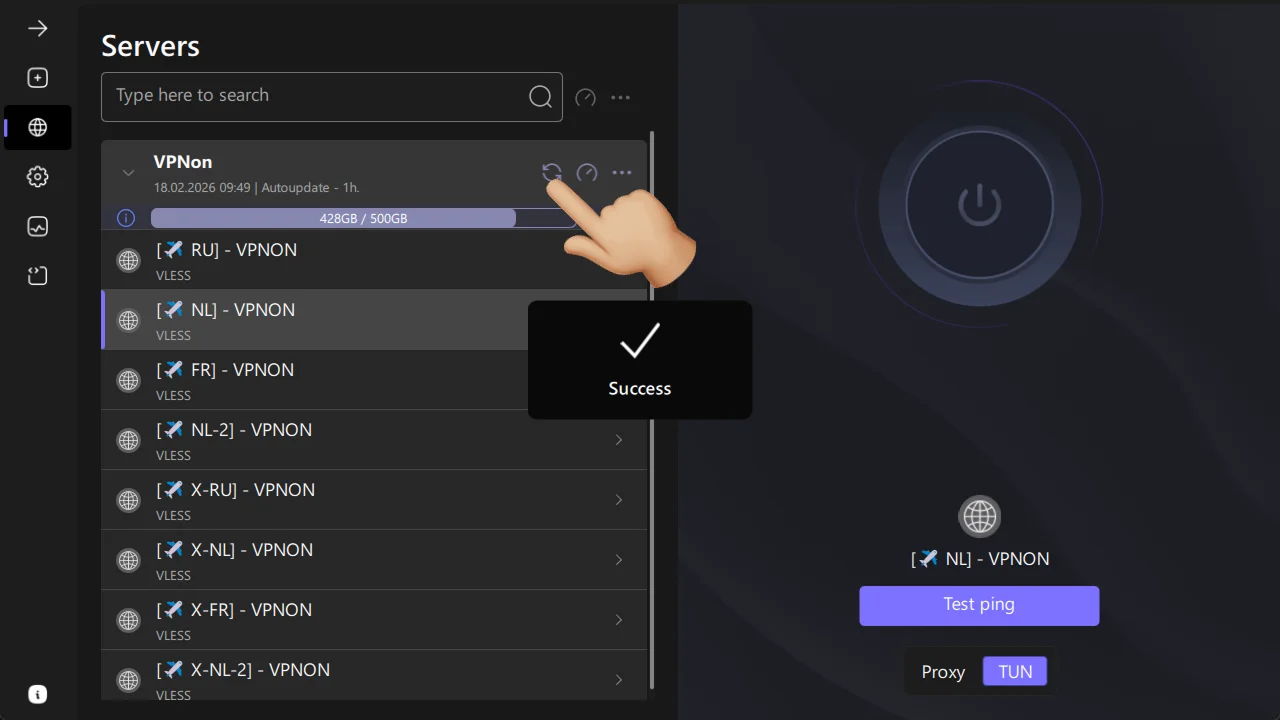
- Check whether the server list was received. If it remains empty or the app shows an error, save the exact message and check that the link was copied in full, is compatible with the client and that access under your subscription is active. An empty list alone does not prove that the subscription expired. If servers appear, separately check the connection and the website or app you need.
Routing Does Not Work
- If your task requires routing rules, check the selected subscription and profile. In the interface shown, open Settings → Routing rules and check Use routing.
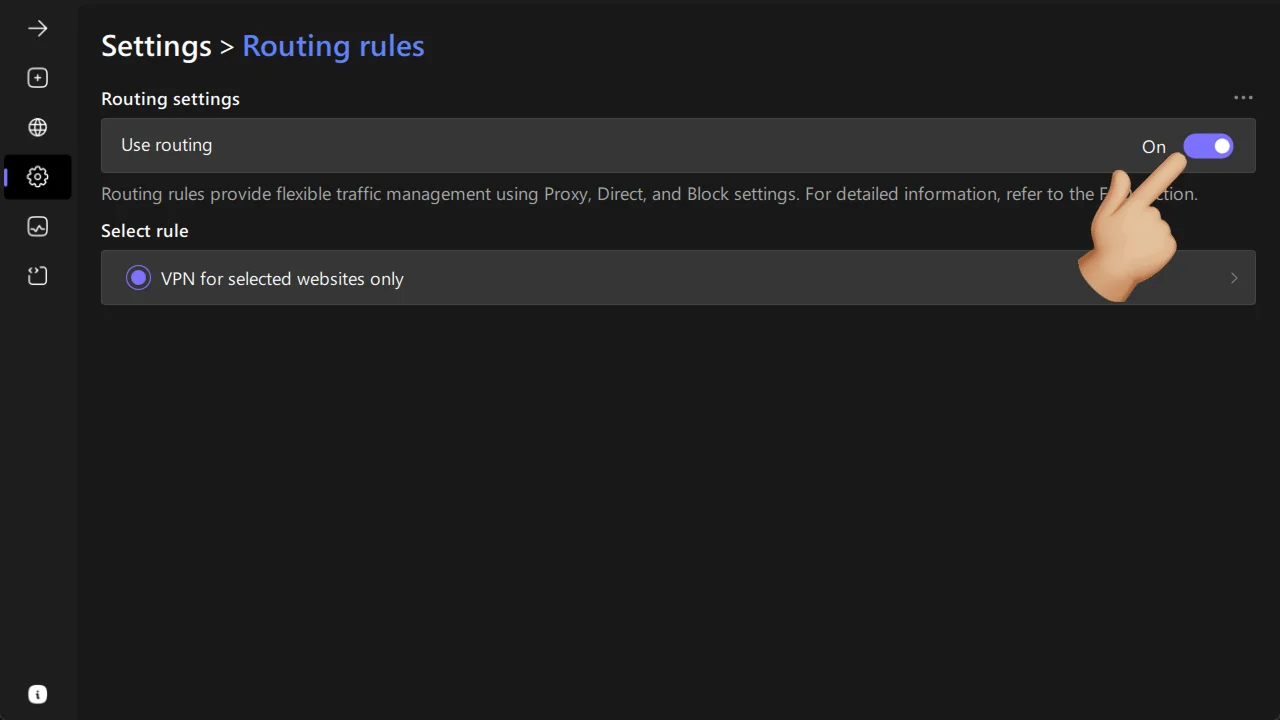
The availability of the switch and editing depends on the version and subscription type. If the provider manages the profile, do not try to bypass the restriction or delete the subscription to unlock the menu.
- Match the selected profile to your task: should selected websites use the VPN, or do you need specific direct exceptions? Check the relevant rules in the routing guide. A profile name alone does not establish the route used by the app you need or by DNS.
If you changed rules, note that the Happ documentation requires reconnecting to apply changes. Do this only when the current connection can be interrupted. On a work device, agree on changes with your administrator.
If the result is not what you expected, note the exact error, client name and version, operating system and version, network type and required behavior: what should use the VPN and what should connect directly. Give these details to support. Do not send your password, subscription link, QR codes or full profile. Further connection checks are in the VPN troubleshooting guide.
Useful links:
| Metric | Result | max | avg | min |
|---|---|---|---|---|
| Ping | —ms | — | — | — |
| Download | —Mbps | — | — | — |
| Upload | —Mbps | — | — | — |
Author: VPNON Editorial Team